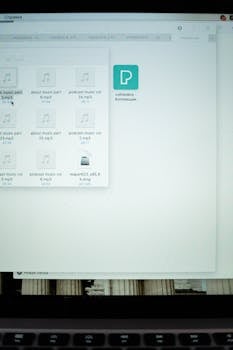
Most people have files, messages, and apps scattered across their devices. At some point, the urge to organize digital life efficiently becomes impossible to ignore.
Streamlined digital habits support focus, save time, and reduce anxiety. Whether you’re sorting endless photos or drowning in inbox notifications, methodical organization pays off year-round.
Read on for realistic, actionable steps to organize digital life efficiently and keep clutter at bay, building a system that doesn’t add stress or complexity over time.
Setting Baseline Rules to Keep Everything Findable
Defining a basic structure dramatically improves your ability to organize digital life efficiently. Set simple, memorable rules to locate anything in seconds instead of struggling with guesswork.
Think of it as labeling moving boxes with clear destinations—future you will thank past you every day.
Naming Conventions Make Search Work for You
Use descriptive, consistent terms in each file and folder name. For example, “2024_ProjectProposal_JSmith” beats “Final_V2.”
If a file relates to multiple categories, use dashes or underscores: “Finance_Insurance_Claims_2023.” Stick to your style everywhere.
Whenever you save a document, pause for five seconds to name it with future search behavior in mind. Test search by date, type, or keyword: does it appear?
Your Folder Structure: Reflect Your Real Daily Flow
Group items based on how you seek them: by task, client, year, or activity type.
If processes change, adjust folder names quickly—let function drive your system, not tradition. Prioritize today’s logic.
Every six months, review your top-five folders. If you hesitate to understand a label, edit it for clarity that matches your current habits.
| System Type | Example Structure | Best For | Action Step |
|---|---|---|---|
| Date-based | 2024_Q1/Invoices/ | Time-sensitive workflows | Name folders by year/month for chronological projects |
| Task-based | Clients/SmithFamily/Contracts/ | Multiple projects/clients | Group all related files under a “project” or task folder |
| Type-based | Receipts, Reports, Presentations | One-off documents | Sort documents by type if you create few in each category |
| Hybrid | 2023_Photos/Events/Weddings | Complex archives | Mix year and event name for detail; revisit annually |
| Simplified | Personal, Work, Archive | Personal everyday files | Use three main folders and move extras to Archive monthly |
Scheduling Dedicated Times: Making Maintenance Non-Negotiable
Put a recurring “digital clean-up” on your calendar to organize digital life efficiently, just as you’d block time for grocery runs or paying bills.
The consistency turns sorting files, deleting junk, and updating folders into a natural, routine part of your week.
Designate Micro-Maintenance Windows
Set 15 minutes every Friday to clear downloads, label photos, and file new docs. Use a timer—”Alexa, set a 15-minute organization timer.”
Standing up for a stretch after your micro-session marks a boundary, signaling your mind to move on.
- Declutter desktop folders: Remove unnecessary files; only keep daily essentials visible.
- Sort inbox by sender: Batch-delete notifications, leave only actionable messages for next steps.
- Rename “Untitled” docs: Each rename reduces future frustration and makes search smooth.
- Sync cloud backups: Hit the sync button for peace of mind; fewer lost photos or docs.
- Close unused browser tabs: Every open tab saps focus—close all but what you need for the next half hour.
Over time, these maintenance bursts build habits that make it easier to organize digital life efficiently.
Quarterly Deep Dives Prevent Data Buildup
Block two hours seasonally for a deep clean of cloud drives and seldom-used folders.
This is the time to review your file structure and delete old or irrelevant items without regret.
- Backup important files before major deletions—having a fallback prevents future panic if you’re ever unsure.
- Archive finished projects: Move last quarter’s work to an Archive folder to clear your main workspace.
- Uninstall unused apps: Keep only tools serving your workflow; remove distractions from your operating system and home screen.
- Organize photos by year or event: Batch-move images; delete duplicates or screenshots you won’t need later.
- Reset digital “junk drawers”: Clear catch-all folders, then decide what routine task would prevent new clutter.
Efficient quarterly reviews prevent small messes from ballooning into unmanageable chaos, boosting your ability to organize digital life efficiently with less effort over time.
Reducing Notification Noise and Distraction Sources
Turning off unhelpful notifications increases focus within minutes. Streamlining alerts is a fast way to organize digital life efficiently and regain peace of mind.
Start by identifying which pop-ups, badges, or alerts create stress, not value.
Configuring App and Device Settings with Purpose
On your phone, tap through notification settings for each app. Only enable those tied to priority actions—direct messages, reminders, calendar invites.
For work, silence group chat notifications after hours. Use “Focus Modes” or “Do Not Disturb” for scheduled quiet periods.
On computers, disable sound or badge notifications from all but your most mission-critical software.
Batch Processing to Avoid Interruption Loops
Plan check-in windows—like “email catchup at 10 am and 3 pm” rather than responding instantly. This controls distractions and helps you organize digital life efficiently.
Let colleagues or family know you check messages in batches: “I check Slack just before lunch and at 4 pm.”
Turn off social media badges during focused work blocks so your attention stays with you instead of drifting to updates.
Staying Consistent With ‘One-Touch’ File Rules
Every digital item that enters your system gets handled just once when you make a ‘keep, act, or delete’ decision. This method limits procrastination and is essential as you organize digital life efficiently.
Think of your inbox or downloads as a conveyor belt—items move to the right spot or off the line completely the moment you encounter them.
Apply “Touch It Once” Routines to Each New File
When a download finishes, drag it to its final resting folder; don’t leave it in Downloads as a placeholder.
Emails with tasks or info go straight to your to-do system or labeled folder the first time you open them.
- Delete duplicates immediately: Saves you time during reviews and removes clutter from every search.
- Complete quick actions now: If replying to email takes two minutes, do it, then archive and move on.
- Save only finished versions: Avoid multiple drafts—keep only the final copy, moving older versions to an Archive if needed.
- Route files as you discover them: Each misplaced item slows things down—stop to correct paths right away.
- Clear camera roll: Each photo you snap, decide within a day: delete or file where it belongs.
‘Touch It Once’ habits become second nature and prevent digital piles from drowning your motivation.
Using Automation for ‘One-Touch’ Management
Explore tools that rename and route files automatically based on simple rules—like saving any PDF received to a “Receipts” folder.
Set up mailbox filters: All newsletters autosort, leaving only urgent items front and center.
Customize backup tools so every photo snapped moves to cloud storage, tagged by date, for zero-intervention peace of mind.
Making Your Digital Life Portable and Secure
Using cloud tools and password managers helps you organize digital life efficiently from any device while protecting sensitive data.
The right setup means you’re never more than a few clicks from your most important information and creative work.
Cloud Storage to Unify Work and Life
Pick a main cloud service—Google Drive, Dropbox, or iCloud. Sort folders as you do locally, keeping personal and work data separate but similarly organized.
Enable automatic backup for your phone’s camera and desktop folders. Test restoring a file occasionally to build trust in your setup.
Syncing over Wi-Fi saves mobile data; schedule it overnight if possible for hassle-free protection of your archive.
Password Managers for Frictionless, Secure Access
Install a reputable password manager on phone and desktop. Save every account, using strong, unique passwords that you never have to remember.
When prompted to update a password, generate a new one in-app, then let your manager save it seamlessly.
If you ever need to share sensitive info, use your app’s share feature—not email or text. Revoke access when done for added security.
Creating a System for Project and Personal Task Planning
A digital task planner brings clarity. Using one lets you organize digital life efficiently, balancing personal and work projects without forgetting deadlines.
The best planners mirror how your mind organizes priorities: by urgency, date, or context (‘call’, ‘write’, ‘shop’).
Choosing a Planner Style That Matches Your Brain
Some write every detail in a checklist, while others block time by task or project. Try both for a week to see which approach sticks.
Create morning rituals: check your planner while having coffee, highlight top three priorities, then get started.
Use calendar integrations where possible so meetings, reminders, and tasks stay linked, lowering the risk of missed steps.
Linking Notes, Tasks, and Attachments
Avoid scatter by attaching reference files to your tasks—like meeting notes, PDFs, or images needed for the project.
Tag tasks by category (“Home”, “Client A”) to batch decisions and avoid context-switching.
Once you check off a task, archive related notes or move them to completed projects. This cycle helps you organize digital life efficiently over time.
Avoiding Digital Overwhelm With Mindful Limits
Establish boundaries to organize digital life efficiently and avoid burnout from constant device use or app switching.
Decide what to limit, remove, or put on pause based on your own experience of stress or distraction.
- Set app time limits: Most smartphones let you cap usage. Try 30 minutes per day on social media; notice improvements in mood and energy.
- Pick a “tech-free” hour: Choose dinner time, bedtime, or your commute. Devices away, focus stays present—the mind rests and refuels.
- Unsubscribe regularly: Each newsletter or update you ignore clutters inbox space. Set rules to auto-delete or review subscriptions monthly.
- Use “read later” tools: Instead of clicking every link now, save articles or videos to a dedicated folder to enjoy at leisure.
- Create a “dashboard” home screen: Only pin core apps. Swipe less, act faster by controlling what’s visible the moment you unlock your device.
Boundaries work when supported by conscious choice and a willingness to check in every week or two to monitor their impact.
Sustaining Clarity with Quarterly “Digital Tune-Ups”
For lasting results, treat your tech as you would a car—periodic tune-ups ensure you continue to organize digital life efficiently.
These reviews prevent the slow creep of clutter that can sabotage your system over time.
Every quarter, schedule a session to update software, trim digital junk, and reflect on your process—consider what could be faster, clearer, and more enjoyable.
Invite input from colleagues or family members sharing your space or devices: “Let’s each pick one tweak that will help our digital lives run smoother.”
Involve everyone in shared spaces to maintain clarity and shared standards—one person’s clean sheet supports a team’s productivity.
Final Thoughts: Digital Order Supports Real-Life Calm
Committing to organize digital life efficiently doesn’t mean perfection—it’s about building routine, friendly systems that fit real needs and stay flexible as your habits change.
Small, steady steps compound into stress reduction, faster daily work, and more time for what matters. Each minor improvement is a win for your future self.
Choose one action today—adjust a naming convention or clear your downloads. Notice the relief tomorrow when you find what you need, exactly where you expect it.